Page Builder — Every Building Block
This sample page shows every kind of section you can add when you create or edit a Custom Page in the editor. Mix and match these blocks in any order to build a page — here's what each one looks like.
1. Prose block
The Prose block is the simplest one: a heading plus paragraphs of text. Use it for history, descriptions, or any plain writing.
Leave a blank line between paragraphs in the editor and they stay as separate paragraphs, like this one.
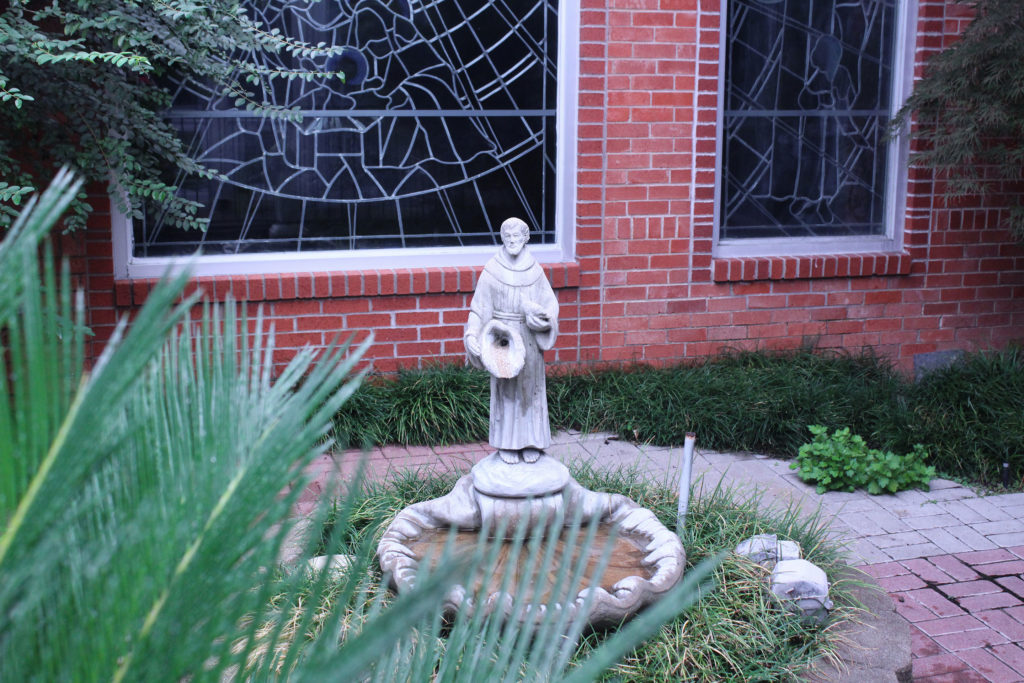
2. Image + Text block
The Image + Text block puts a picture beside your writing. You choose the image and whether it sits on the left or the right — great for a short story with a photo.
Tip: click the image to open a larger view.
3. Feature cards block
Three little boxes
The Cards block shows a row of small boxes, each with a title and a short description.
Add as many as you like
Add or remove cards in the editor; they rearrange to fit the screen automatically.
Good for highlights
Use cards for features, services, or a few points you want to stand out.
4. Testimonials block
“This block shows quotes from families or residents, each with a name underneath.”
“Add as many quotes as you'd like — a warm way to share what people say about the community.”
5. Call-to-action block
The Call-to-action block is a bold closing section with a button. Use it to point visitors to the next step — schedule a tour, donate, or get in touch.